


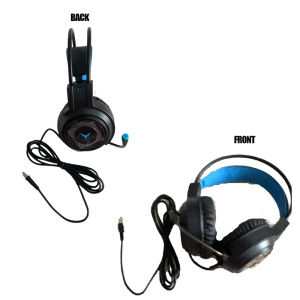
(HD1)Earphones Wired Gaming Headset with Microphone Stereo Surround Bass 7.1 Channel USB 3.5mm Headphones Earbuds Gamer Helmet for PC Laptop Headsets
G58 RGB Stereo 7.1 Surround LED Wired Gaming Headset with Built-in Microphone, USB Version & 3.5mm JackSome outstanding features of G58 Wired Gaming Headset.✅Multi-color earcup design with RGB LED effect that automatically changes color.✅7.1 Surround simulated sound effect suitable for gaming.✅Sensitive microphone, adjustable direction for stable quality when chatting, voice chat.✅Elastic metal frame, fixing the headset position to suit the user's size.✅Two ear cushions are quite soft and breathable, integrated with convenient volume adjustment roller.Product Description:Product Type: Wired Gaming HeadsetModel: G58Color: Black / White / PinkEffect: Simulated 7.1 SurroundConnection Method: Wired*Interface Port:- USB + Double Jack 3.5mm (Audio, Mic): Used for PC- USB (7.1 Surround): Used for PC, Laptop- Single Jack 3.5mm: Used for phones, tablets, LaptopsSpeaker sensitivity: 109dB ± 3dBFrequency response range: 20Hz-20KHzRated power: 20mWCable length: 2.5mSize: 235mm * 195mm * 107mmProduct packaging:1 * G58 Wired Gaming Headset.Question 1: Why are the lights on the backless headphones not working and there's no sound?Method 1: Plug the headphones' USB connector into your computer//phone charger.First, check if the headphones have sound: Adjust the volume knob to check if the volume is too high. Rotate the volume knob back and forth. Once the volume is adjusted correctly, plug it into the audio jack on the back of your computer. (If there's sound from the back of the computer, press the mute button and replug the headphones.)Method 2: Plug the green connector of the headphones into your phone to listen to music. If your phone has sound but your computer doesn't, consult a professional or check your computer.Check if the headphone plug colors are correct: First, confirm that the pink and green plugs match. The corresponding plugs on your computer are the pink and green plugs on the back (remember to insert the pink plug into the pink hole on the back of the computer for a more secure fit; if the front plug is broken, insert it into the pink and green hole on the front of the computer).Click the speaker icon in the lower right corner of your desktop to open the volume control, then click the unmute symbol to turn the playback component's volume to maximum in the main interface of the software.Question 2: Why is there no sound on one side of the headphones?Plug the green headphone plug directly into your phone and check if the music plays normally. If this is normal, please search:There are many solutions for "No sound on one side of the headphones". Usually, the solution is to test the headphones on both the computer desktop and the front panel audio jack. The front panel jack is often not standard, so you may need to unplug and plug the headphone plug in a few times, or use our adapter cable to solve the problem.

CoreDigital
Review

You May Also Like
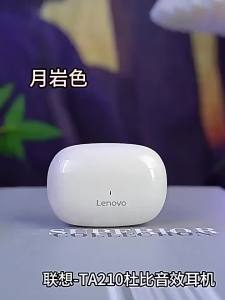
Lenovo | Lenovo TA210 TWS Wireless Bluetooth 5.3 Earphones Gaming Low Latency Dual Mode Music Earbuds Sports In-Ear Headset With Mic New
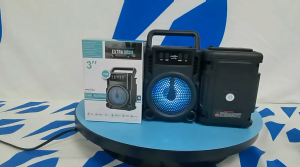
Pembesar Suara Bluetooth Tanpa Wayar Mudah Alih Subwufer Mudah Alih Luar Hayat Bateri Panjang Pembesar Suara Mini Berwarna-warni

【KEVE】Turntable Vinyl Record Player Suitcase Gramophone Portable Bluetooth Speaker Music Player Wooden Phonograph Aux-in RCA
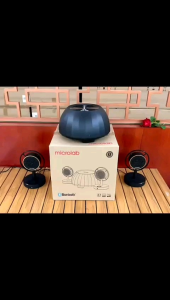
microlab speaker 2.1 multimedia
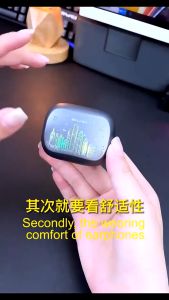
Awei T53 ANC Call Noise Reduction Wireless Earbuds (Black) | In-Ear Bluetooth Earphones with Mic Waterproof IPX6

JBL | JBL Flip7 IP67 Waterproof Dust Resistant Bluetooth Speaker High-Fidelity Stereo Deep Bass Convenient PartyBoost Mode Remarkab
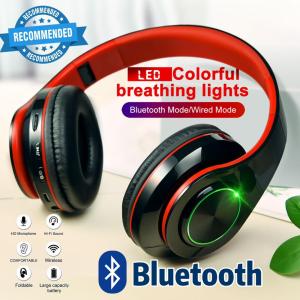
【Premium Quality】B39 Wireless Bluetooth Headphones Foldable Stereo Gaming HeadsetStereo Headphone Headwear Headphones Strong Bass With LED lightEarphones
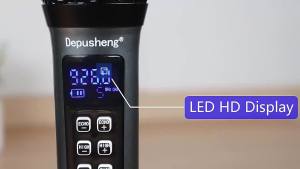
Depusheng W4 Wireless Microphone with Echo Treble Bass & Bluetooth 98 FT Range UHF Portable Handheld Dynamic Microphone System

Sanrio | Sanrio TWS Earbuds BL48 Kuromi Bluetooth Earphones Cinnamoroll Wireless Headset Hello Kitty Sport Noise Reduction Game Headphone

Jieyang | High Volume Payment Broadcast Bluetooth Speaker

JBL Tune 230NC Noise-Cancelling True Wireless In-Ear Headphones Earbuds Waterproof Headset With Mic Feiy