



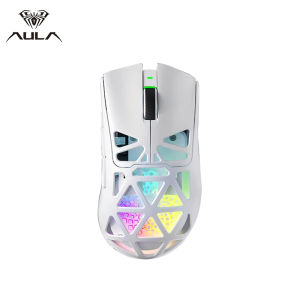
AULA SC620 Wireless Gaming Bluetooth Mouse Tri-Mode Lightweight Hollow Out Design Rechargeable Mouse 12000 DPI PAW3311 Fire Button Contour Topography for Esports Game Office
Product Functional Parameters:Sensor: PAW3311 custom sensor, up to 12000 DPI (6-speed adjustable: 800/1600/2400/3200/6400/12000, default 1600)Connection: Tri-mode (Wired USB-C / 2.4G wireless / Bluetooth wireless)Battery: 400mAh high-capacity rechargeable batterySwitch: Huanyu mechanical micro switch (≈20 million clicks lifespan)Extra Features: Customizable Fire Button, RGB backlighting✨ Key Product Features:【Tri-mode Connection】 Supports wired USB-C, 2.4G wireless, and Bluetooth wireless, compatible with desktops, laptops, mobile phones, and other devices.【PAW3311 High-precision Sensor】 Delivers up to 12000 DPI with 6-speed adjustment, ensuring ultra-low latency and precise tracking for gaming and office use.【Hollow Lightweight Design】 Only ~67g, ergonomic symmetrical shape for comfortable long-hour use and flexible control.【400mAh Long Battery Life】 Large capacity battery provides extended usage time, rechargeable via USB-C cable.【Customizable Fire Button】 Extra programmable hotkey for gaming advantages (e.g., rapid fire) and office functions (e.g., Boss Key).【Huanyu Mechanical Switches】 Tuned for crisp tactile feedback, with a 20-million-click lifespan to withstand intense FPS and AAA games.【Colorful RGB Backlighting】 Personalized dynamic RGB lighting effects enhance the gaming atmosphere and visual appeal.【Low-latency Wireless Tech】 Custom transmission technology ensures stable, anti-interference wireless performance with low power consumption.📦 Package Contents:1 × AULA SC620 Gaming Mouse1 × USB-C charging & data cable1 × 2.4G wireless receiver1 × User manual🛠️ Troubleshooting Guide:(Note: This is a mouse product; the following is adapted for mouse-related issues)1. Mouse Not Responding / No Input Solution:Check the battery level and recharge if low.Verify the connection mode: ensure the 2.4G receiver is plugged in (for 2.4G mode) or Bluetooth is paired correctly (for Bluetooth mode).Reconnect the USB-C cable (for wired mode) or re-pair the wireless connection.Test the mouse on another device to rule out device compatibility issues.Install the official driver software to reset DPI and button settings.2. Mouse Cannot Charge Solution:Charging Method: Connect the mouse to a USB port (PC, power bank, or 5V/1A adapter) using the included USB-C cable.Check Cable & Port: Ensure the USB-C cable is securely plugged into both the mouse and power source; try a different USB-C cable or port.Adapter Requirements: Use a 5V/1A or lower current adapter; avoid fast-charging adapters (e.g., 9V/2A) to prevent damage.Restart the Mouse: If charging fails, press and hold the reset button (if available) for 3 seconds, then retry charging.Battery Check: If the battery remains uncharged after 2 hours, contact customer support for battery replacement.

AULA Global
You May Also Like
For Lenovo M10 M11 LTE 10.1 X505L X505F X605FC LC X605M TB330XU Matte Clear Anti Blue Hydrogel Tab Tpu Screen Protector

LOVELY HUT Ballet Style Lace Bowknot Phone Chain Ribbon Pearl Sweet Bow Ribbon Phone Strap Fashion Keychains Beaded Hanging Pendant Jewelry Gift
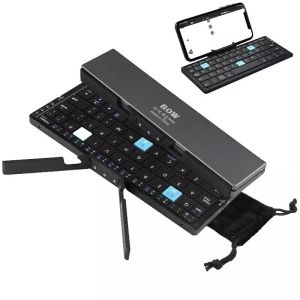
Bluetooth Rechargeable Folding Keyboard Mini Forable Portable Keyboard With Aluminum Alloy Magnetic Stand For iPone iPad Tablet
Logitech | Logitech M650 Silent Bluetooth Wireless Mice Ergonomic Quiet Clicks Multi Pairing Desktop Laptop Office PC
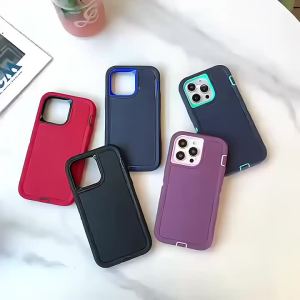
Rugged 3IN1 Military Grade Heavy Duty Anti-Drop Case for Google Pixel 10 9 8 Pro XL Shockproof Armor Hard Protector Cover Funda
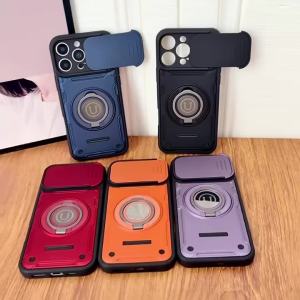
Magnetic 360° Ring Kickstand Phone Case with Slide Camera Lens Cover For Infinix Note 50 Pro 4G Hot 60i 60 50 Pro+ Smart 10 9 HD
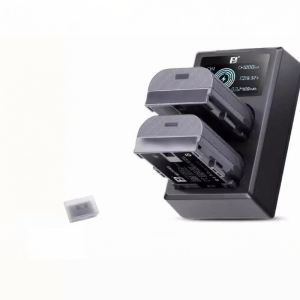
FB | 3C Certified Compatible With Canon EOS Series Camera Battery
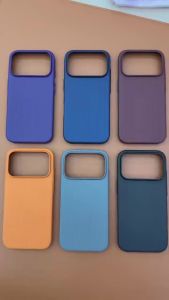
Business Rock Sand Corrugated Matte Magnetic Case for Xiaomi 17 Pro Max 15 14 Pro Ultra for MagSafe Charge Drop Protection Cover
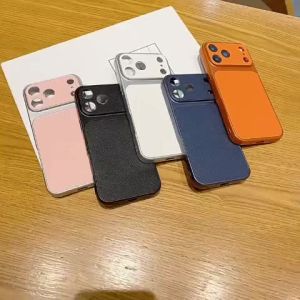
For Samsung Galaxy A05 New faux leather phone case high-quality anti drop cover

MINGCAI | Camera Protection Film iphone 13 series
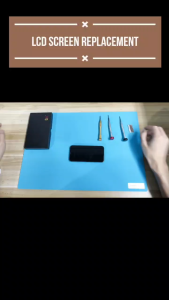
LCD Display Touch Screen Digitizer Full Set for Redmi Note 9 / Redmi 10X