


U8 Portable A4 Thermal Printer Wireless Bluetooth for Digital Nomads Road Trip & Mobile Office
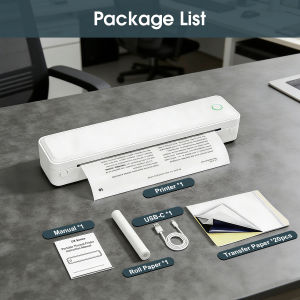
U8 Portable A4 Thermal Printer User GuidePre-Purchase Notice (Read Before Ordering to Avoid Returns)This is a portable A4 thermal printer designed for tattoo stencil printing and daily document printing, compatible with tattoo transfer paper and black mark folded thermal paper. Please read the following details carefully before purchase to avoid unnecessary returns.This is a monochrome thermal printer. It does not support color printing and is not a professional high-resolution photo printer.It does NOT support die-cut label gap detection. It is not suitable for gap-positioned label printing.For tattoo stencil printing, the final transfer quality highly depends on your original pattern file and transfer paper quality. Only high-definition, clear pattern files can deliver ideal results. Blurry or low-resolution files will lead to poor stencil effect, which is not a product defect.Mobile printing requires a dedicated APP, and computer printing requires matching driver installation. Basic digital operation skills are required. If you have no experience with driver setup, please consider carefully.The maximum supported paper roll outer diameter is 30mm. Oversized paper rolls will not fit the paper compartment.Product OverviewThis slim, lightweight A4 thermal printer uses ink-free direct thermal technology, so no expensive ink or toner is needed. It supports both Bluetooth wireless connection for mobile devices and USB wired connection for computers. With a built-in rechargeable battery, it is perfect for mobile tattoo artists, on-the-go office workers and craft lovers. It is equipped with a built-in tear-off blade for neat paper cutting, and multiple sensors for paper, temperature and cover status detection.Core SpecificationsPrinting Method: Direct Thermal (ink-free)Resolution: 203dpiMaximum Print Width: 208mmMaximum Print Speed: 15mm/sPrint Head Lifespan: 50KMSupported Paper Types: Tattoo transfer paper, black mark folded thermal paperMaximum Paper Width: 216mmMaximum Paper Roll Outer Diameter: 30mmBuilt-in Battery: 1500mAh rechargeable lithium batteryCharging Standard: DC 5V/2A via Type-C portConnection Modes: USB + BluetoothCompatible Systems: iOS, Android, Windows, macOSProduct Dimensions: 288.5 x 64.5 x 51mmNet Weight: 620gBuilt-in Functions: Black mark detection, paper out detection, voltage detection, temperature detection, cover open detectionButton & Indicator InstructionsButton FunctionsPress and hold the function button for 2 seconds to turn the printer on or off.Double-click the function button to print a self-test page, which shows device status, battery level and connection information.Note: The printer will turn off automatically after 15 minutes of no operation to save power.Indicator Light StatusSteady green light means the printer is in normal standby mode, or the battery is fully charged.Slow flashing green light means the printer is charging while powered on.Steady blue light means Bluetooth is connected successfully.Flashing blue light means Bluetooth is in pairing or configuration process.Steady red light means the printer is out of paper, the top cover is open, or the printer is charging while powered off.Slow flashing red light means the battery is low, please charge the device in time.Alternating red and green flashing means the print head is overheating. The printer will pause working automatically and resume once it cools down.⚠️ Mandatory Safety WarningsViolation of the following rules will void your product warranty and may cause safety risks.Only use a standard DC 5V/2A charger for charging. Unmatched chargers may damage the battery and internal components, and may cause overheating or fire hazards.Do not disassemble, drop, squeeze or impact the printer forcibly. Internal precision parts are easily damaged by rough handling.Keep the device away from water, liquids and humid environments to prevent short circuits and device failure.The print head will heat up during continuous printing. Do not touch the print head or paper outlet directly during or right after printing to avoid burns.Do not use or store the printer in temperatures below 0℃ or above 50℃. Keep it away from fire, direct sunlight and heat sources.If the print head overheats, the printer will stop working automatically. Do not force it to print continuously to avoid permanent damage.This device complies with FCC rules. Any unauthorized modification or disassembly will void your right to use this product.Dispose of the printer and battery according to local electronic waste regulations. Do not discard it with ordinary household garbage.Step-by-Step Usage TutorialStep 1: Load Paper (Most Common Mistake!)More than 90% of blank printing issues are caused by incorrectly loaded paper. This printer supports both roll paper and folded paper.Roll Paper InstallationPress the open button to lift the top cover of the printer.Identify the printable side: the smooth, shiny side of thermal paper is the printable side. For tattoo transfer paper, peel off the transparent protective film first and confirm the correct printable side.Place the paper roll into the compartment, with the printable side facing the print head. Make sure the paper roll outer diameter does not exceed 30mm.Pull the leading edge of the paper through the outlet, and adjust the paper limiter to fit the paper width.Close the top cover firmly until it clicks into place.Double-click the function button to print a self-test page. Clear and complete printed content means the paper is loaded correctly.Folded Black Mark Paper InstallationOpen the top cover of the printer.Take out the folded paper, confirm the black mark side and the printable side. The printable side is the smooth surface with black mark positioning.Insert the leading edge of the folded paper into the paper inlet, with the printable side facing the print head.Adjust the paper limiter to match the paper width, and make sure the paper is flat and straight.Close the top cover firmly. The printer will detect the paper and black mark automatically.Step 2: Print via Mobile Phone (Bluetooth Connection)Search for "Sharpfox" in your mobile app store and download the official APP.Turn on the printer and enable Bluetooth on your phone.Open the APP and follow the on-screen prompts to search for and pair with the U8 printer.After successful connection, you can import documents, tattoo patterns or other files in the APP.Important note for tattoo printing: Only use high-definition, clear pattern files. Blurry or low-resolution original images will result in poor transfer effect. You can adjust print density in the APP to get the best stencil result.Adjust print size and settings according to your paper type, then tap the print button to start printing.Step 3: Print via Computer (USB Connection)Contact our customer service to get the matching printer driver file for your Windows or macOS system.Important: Before installing the driver, temporarily turn off antivirus software on your computer to avoid installation failure.Turn on the printer and connect it to your computer with the included Type-C USB cable.Install the driver step by step according to the instructions, then restart your computer.Open the file you want to print, select the U8 printer from the printer list, adjust print settings, and send the print command.Note: Always select the correct driver for the U8 model. Wrong driver will directly cause printing failure.Daily Maintenance TipsClean the print head and roller regularly with a clean cotton swab dipped in a small amount of isopropyl alcohol to remove dust and paper scraps. Wait at least 5 minutes for the alcohol to evaporate completely before using the printer again.Always turn off the printer and wait for the print head to cool down completely before cleaning.Do not use water, corrosive cleaners or sharp objects to clean the internal parts of the printer.Use qualified thermal paper and tattoo transfer paper to ensure clear printing and extend the service life of the print head.Charging while printing is not recommended, as it may shorten battery life.If you will not use the printer for more than 1 month, charge it to about 50% battery and store it in a cool, dry place. Charge it at least once every 2 to 3 months to protect battery performance.Common TroubleshootingBlank Prints (No Content on Paper)Possible causes: Paper loaded upside down; protective film on transfer paper not removed; paper roll empty.Solutions: Flip the paper roll so the shiny printable side faces the print head; peel off the protective film before loading tattoo transfer paper; replace with a new paper roll.Blurry or Faded PrintingPossible causes: Low-quality paper; dirty print head; low battery; low-resolution original pattern.Solutions: Replace with high-quality thermal or transfer paper; clean the print head as instructed; charge the printer fully; use high-definition pattern files for printing.Bluetooth Connection FailedPossible causes: Printer too far from your phone; printer already connected to another device; Bluetooth disabled on your phone.Solutions: Keep your phone within 10 meters of the printer; disconnect the printer from other devices first; re-enable Bluetooth on your phone and restart the APP.Printer Will Not Turn OnPossible causes: Battery completely drained; charging cable not properly connected.Solutions: Charge the printer with a standard 5V/2A charger for at least 1 hour then try again; check the cable and port connection.Paper Jam or No Paper FeedingPossible causes: Paper placed crookedly; paper path blocked by scraps; paper roll too large; paper width not adjusted properly.Solutions: Open the top cover, gently remove the jammed paper, and reload the paper flatly; use paper rolls with diameter no more than 30mm; adjust the paper limiter to fit the paper width.Printer Stops Printing SuddenlyPossible causes: Print head overheating; out of paper; low battery; data transmission error.Solutions: Wait for the print head to cool down and it will resume automatically; check paper level and reload if needed; charge the printer in time; re-send the print command.

Prime Supply_Play Life
Review

You May Also Like

A4 Inkless Portable Printer Phomemo M08F Wireless Bluetooth Thermal Printer Works with Mobile iPhone Laptop PC Android IOS Windows
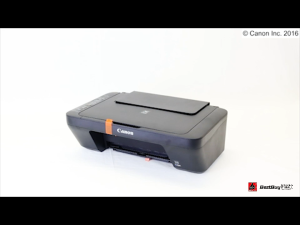
Canon Pixma E470 All In One Wireless Printer (Print/Scan/Copy/Wifi)
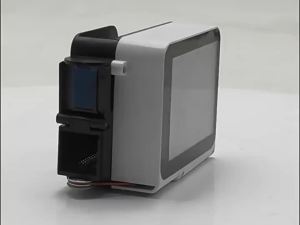
12.7mm Portable Inkjet Printer Unencrypted for Expiry Date Barcode Batch Numbers Logo Printing Multiple Languages
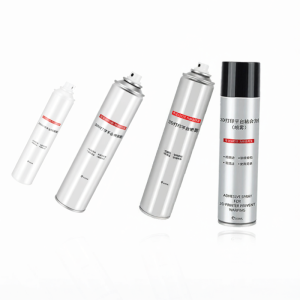
CHG | Anti Warping Anti Wear Lubricant Environmental Friendly 3D Printer Bed Adhesive

Printer Ink Dye ink Refill Ink Universal Refill Ink CISS Black Cyan Magenta Yellow for Brother
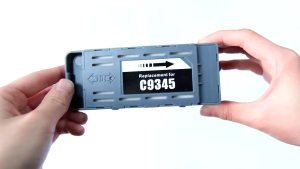
L18058 L18050 C9345 Maintenance Box for Epson L15158 L15168 L15160 L15150 L15188

250ml 500ml 1000ML DTF Ink Cleaning Solution for Epson DX4 DX5 DX7 L1800 L805 L800 1390 I3200 Printhead DTF Ink Cleaning Liquid
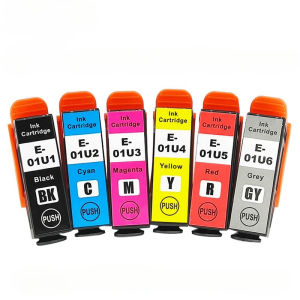
Compatible T01U1 T01U2 T01U3 T01U4 T01U5 T01U6 (01U XL) Ink Cartridges Replacement for Epson XP-15010 XP-15080 A3+ Photo Printers Black/Cyan/Magenta/Yellow/Red/Grey 6 Colors 2-Year Shelf Life
Compatible Toner MLT-D111L MLT-D111S For Samsung Xpress SLM2020 SLM2020W SLM2070 SLM2070F SLM2070W
INK / UNIVERSAL Inkjet Printer Refill Dye Ink 100 ml 4 Color (BK/C/Y/M) Compatible with HP EPSON Canon Br
CARDPRINTERMALAYSIA STANDARD CLEANING KIT COMPATIBLE FOR ZEBRA ZXP CLEAN ROLLER CARD PATH PRINTHEAD ID CARD PRINTER - 105999-301-CPM